Overview
This guide helps resolve app installation issues on Android devices hosted in TestGrid. Certain Android security features, such as Verify Apps over USB and Google Play Protect, can block or interfere with application installations. Disabling these settings helps ensure successful app deployment and execution during testing.
Prerequisites
Access to the Android device.
Symptoms
You may observe one or more of the following:
Application installation fails unexpectedly.
Installation remains stuck for an extended period..
Automation execution fails because the application cannot be installed.
Possible Cause
Android security features may prevent applications from being installed through automation or USB-based deployment methods.
Common settings that can cause installation failures:
Verify Apps over USB
Google Play Protect
Resolution
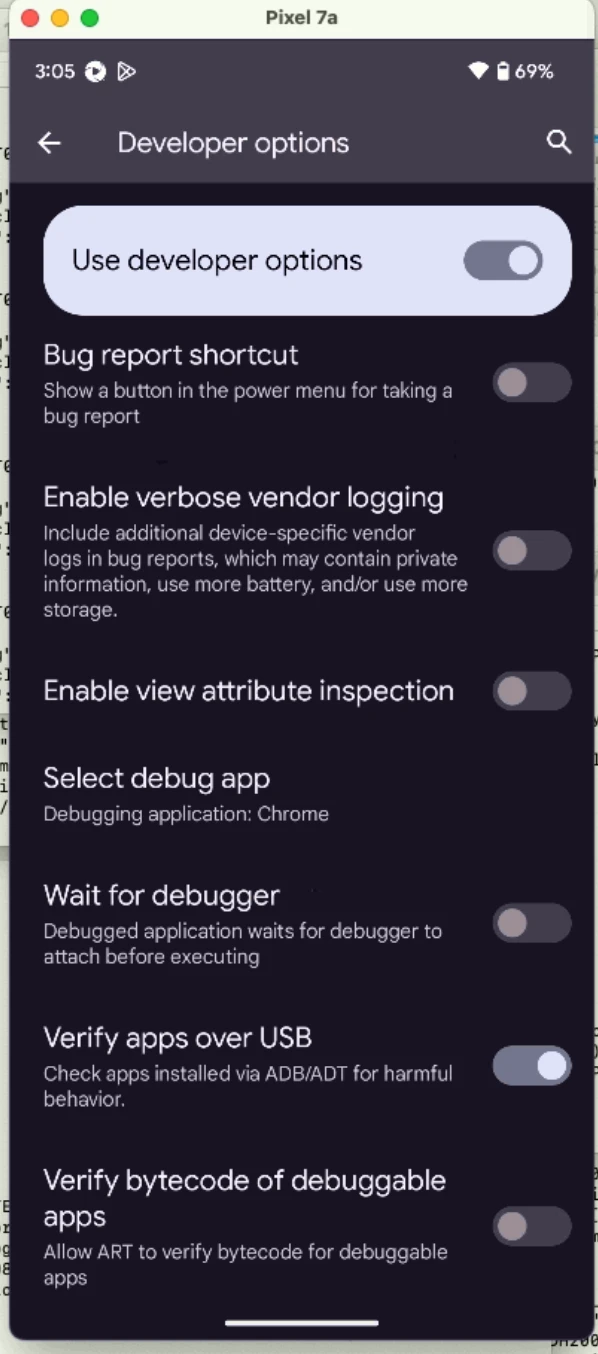
Step 1: Disable "Verify Apps over USB"
Open:
Settings → Developer Options
Locate Verify Apps over USB.
Ensure this option is disabled (OFF).
Step 2: Open Google Play Store
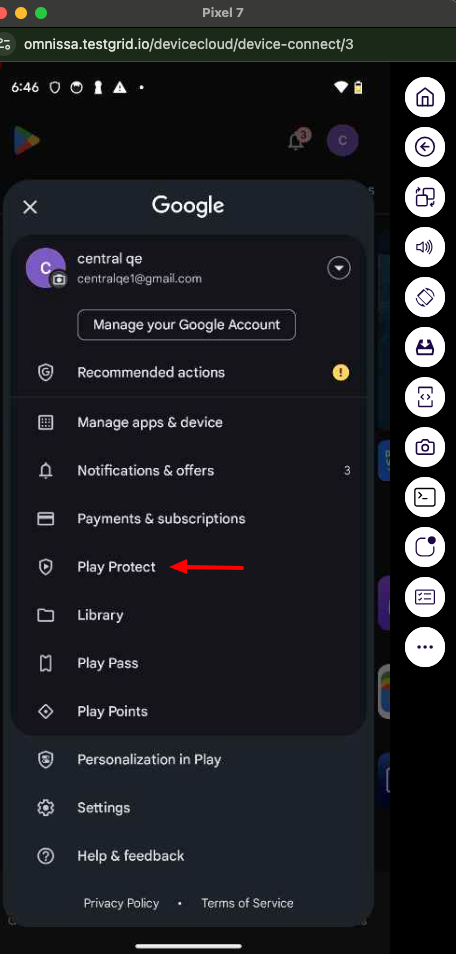
Launch the Google Play Store application.
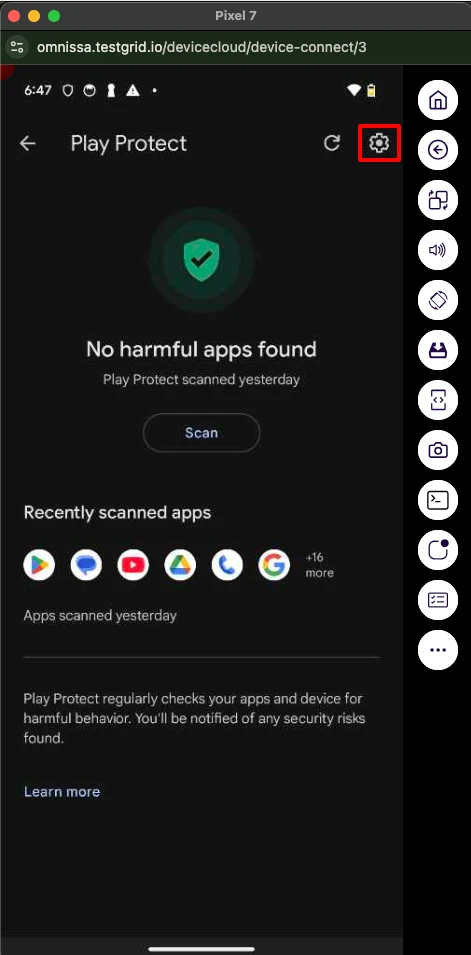
Step 3: Open Play Protect
From the Play Store menu, select Play Protect.
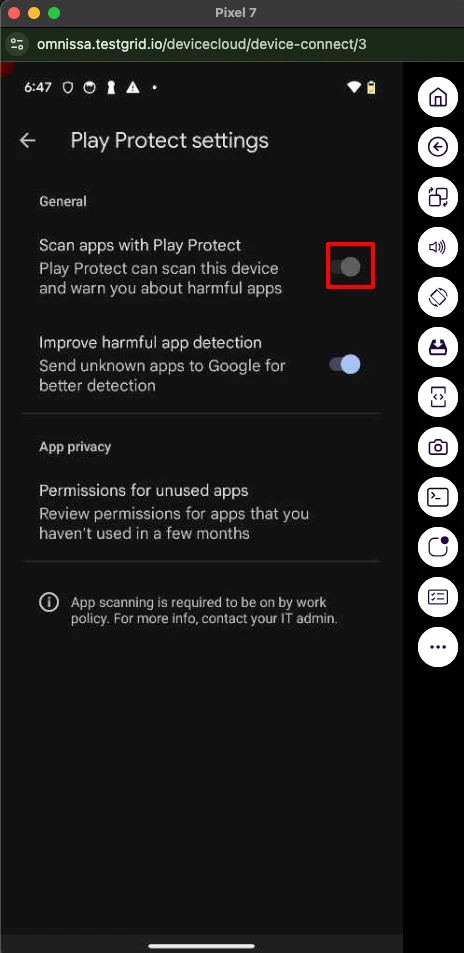
Step 4: Disable App Scanning
Turn off:
Scan apps with Play Protect
 .
.
Additional Notes
These settings can automatically block or delay application installations performed through automation tools.
Disabling them is recommended only for testing devices used within controlled environments.
If installation issues continue after updating these settings, contact TestGrid Support for further assistance.
Was this article helpful?
That’s Great!
Thank you for your feedback
Sorry! We couldn't be helpful
Thank you for your feedback
Feedback sent
We appreciate your effort and will try to fix the article