Overview
The Record & Play feature enables users to create automated test cases by recording interactions performed on an application. Users can record actions, manually add or modify steps, execute tests across one or more devices, and review detailed execution reports.
Prerequisites
Active TestGrid account with CoTester access.
Application installed on the selected device for Android or APK (for mobile testing).
Bundle Identifier available for iOS applications.
Required permissions to create and execute test cases.
Steps
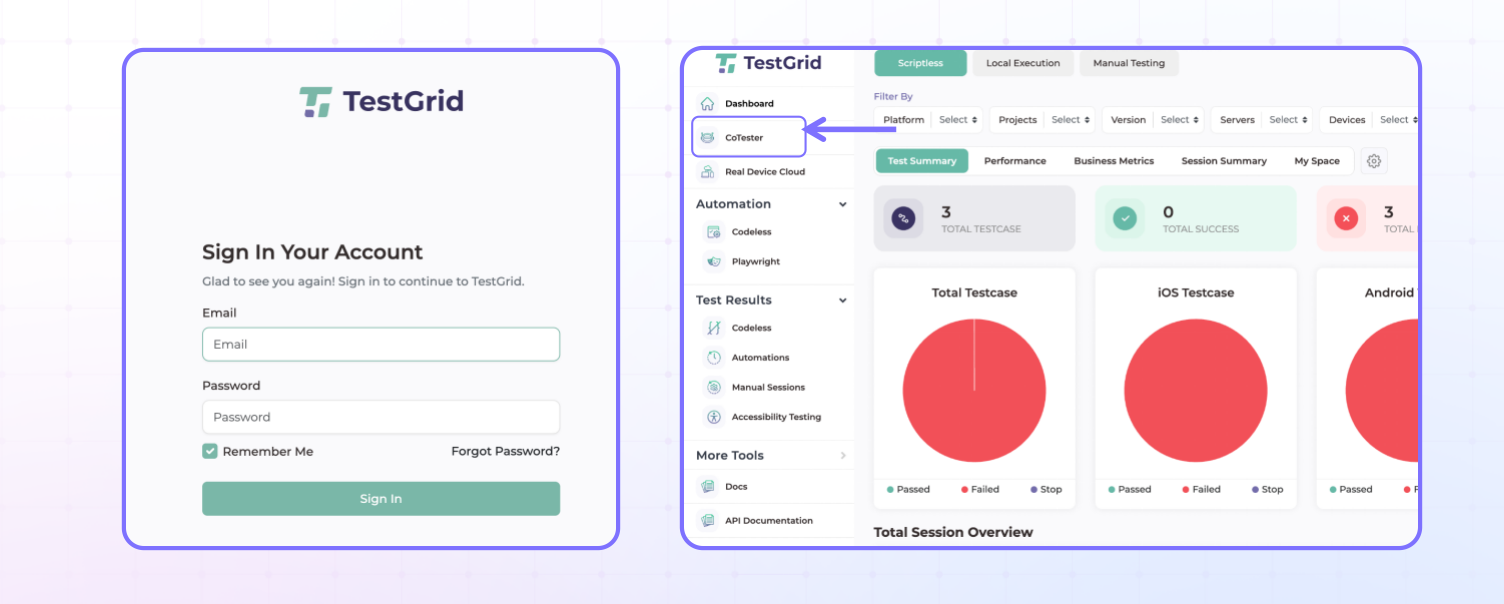
Step 1: Access Cotester
Log in to the TestGrid platform and navigate to CoTester.
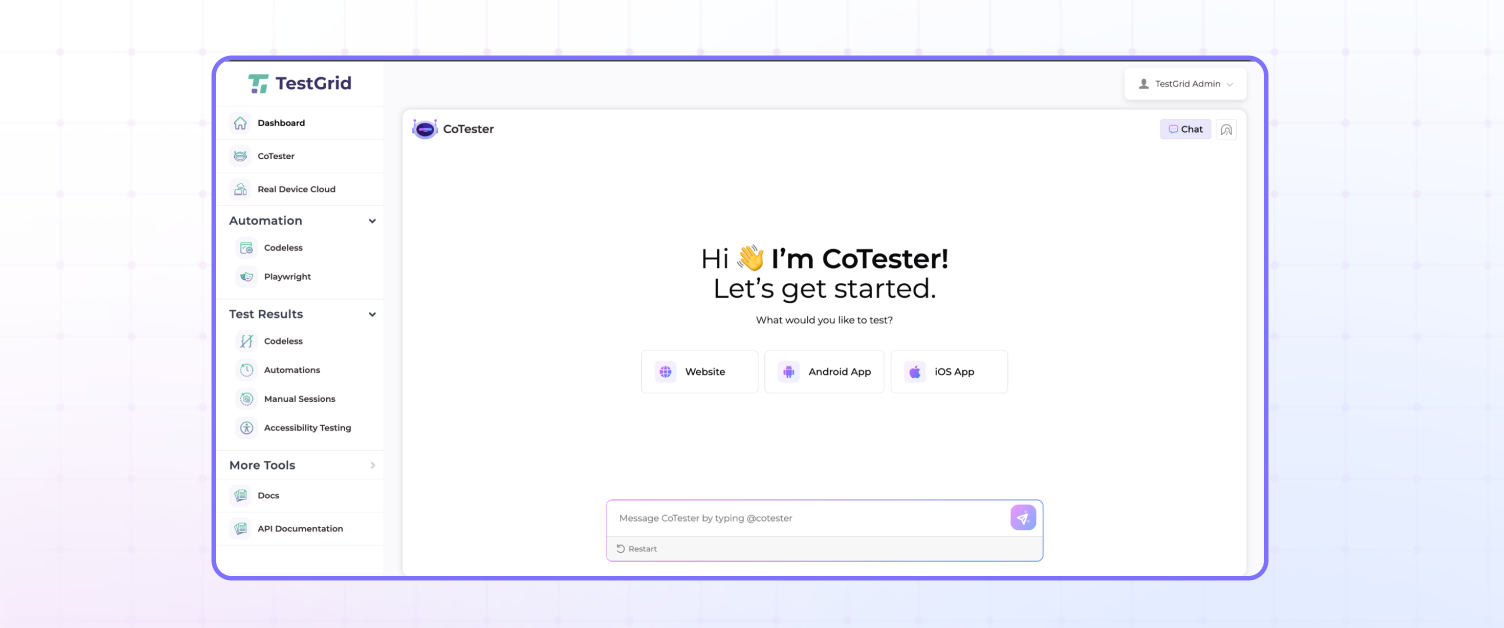
Step 2: Select the Platform
Choose the platform you want to test:
Website
Android Application
iOS Application
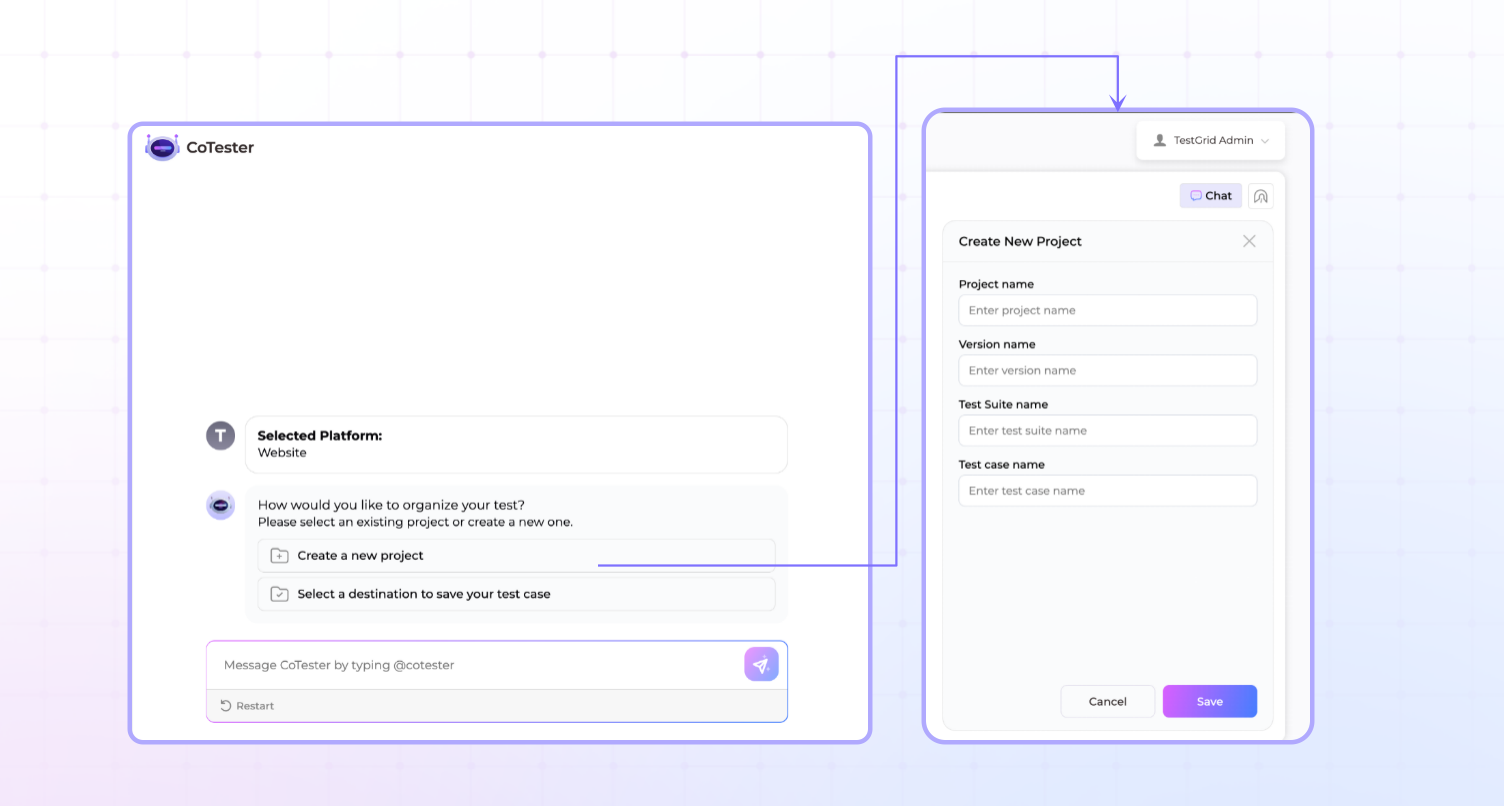
Step 3: Create a Project
Navigate to the project creation panel and provide the following information:
Project Name
Version Name
Test Suite Name
Test Case Name
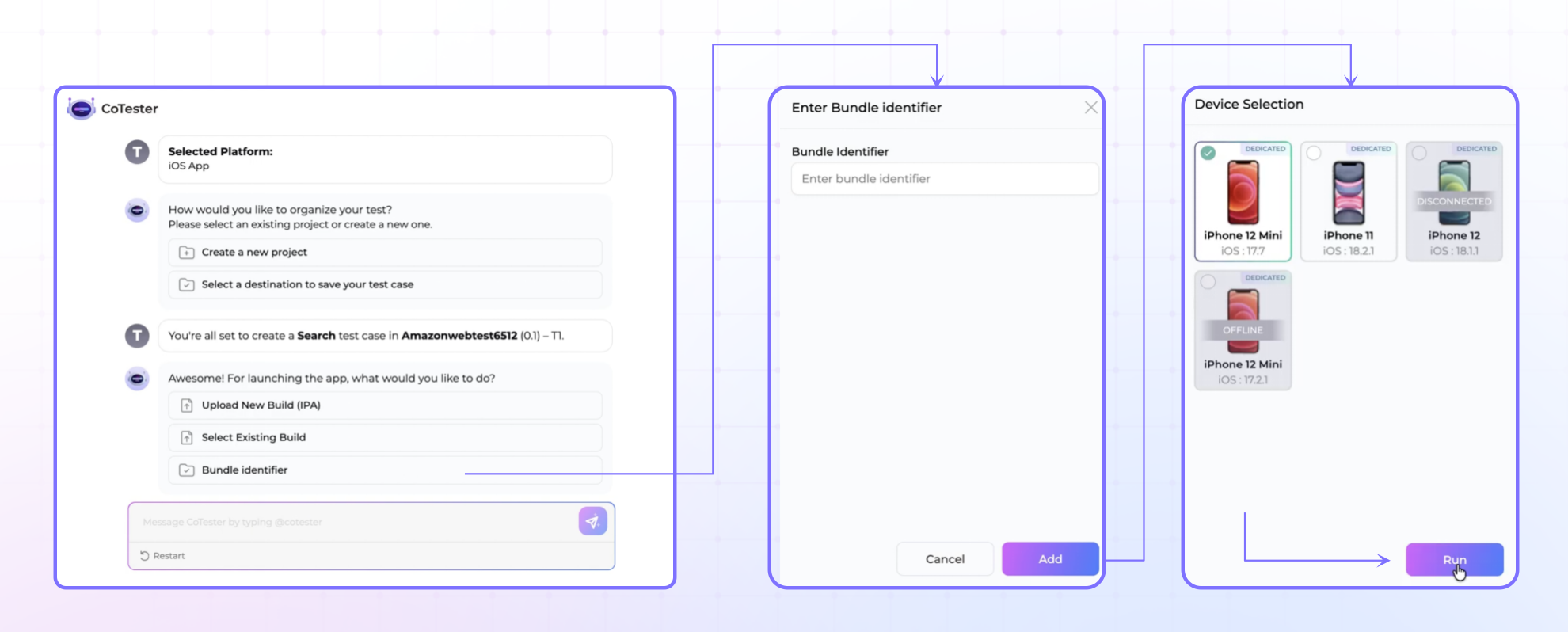
Step 4: Configure the Application
We have selected iOS, for iOS applications:
Enter the Bundle Identifier (if app is installed) or upload a new build.
Select the target device.
Click Run.
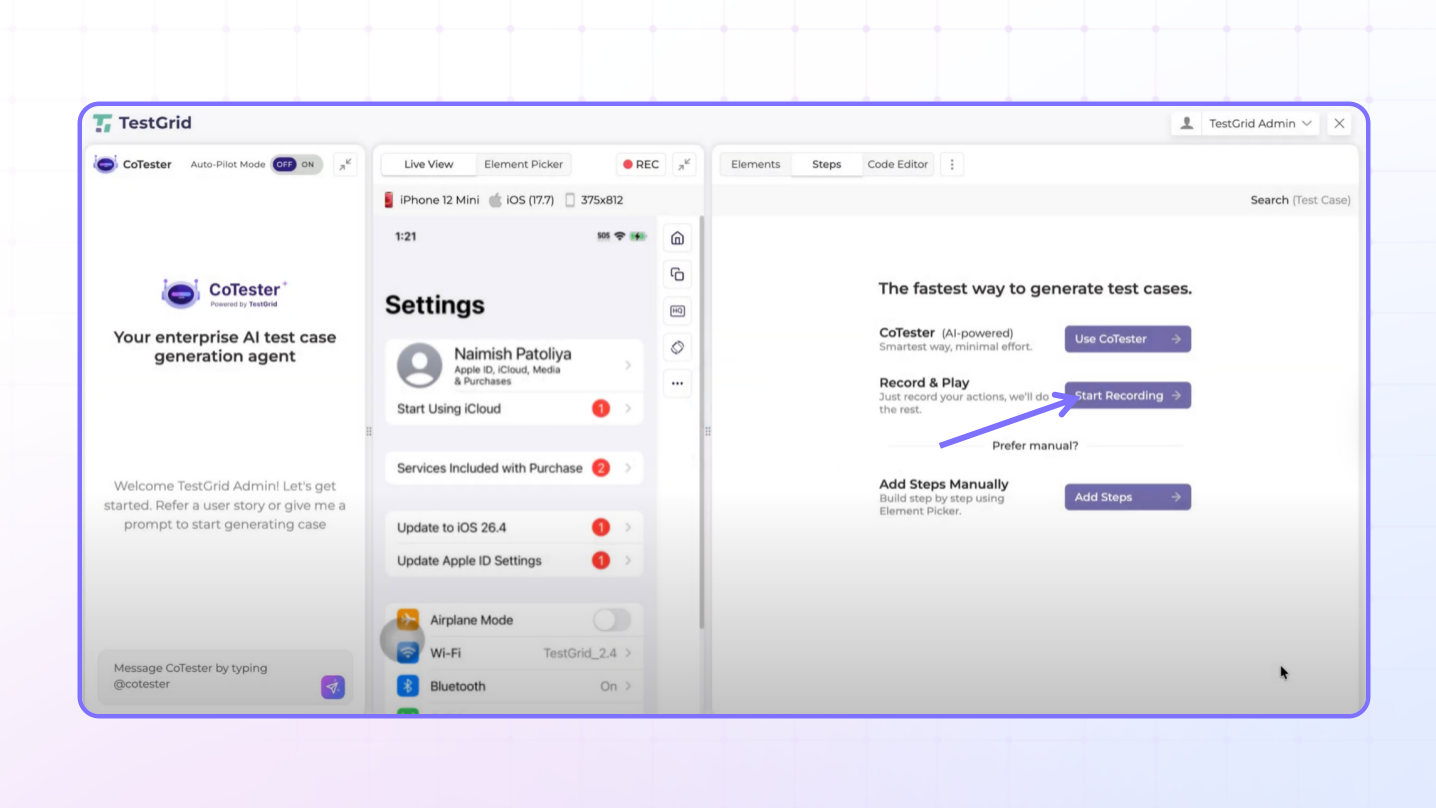
Step 5: Start Recording
Click Start Recording to begin capturing user interactions.
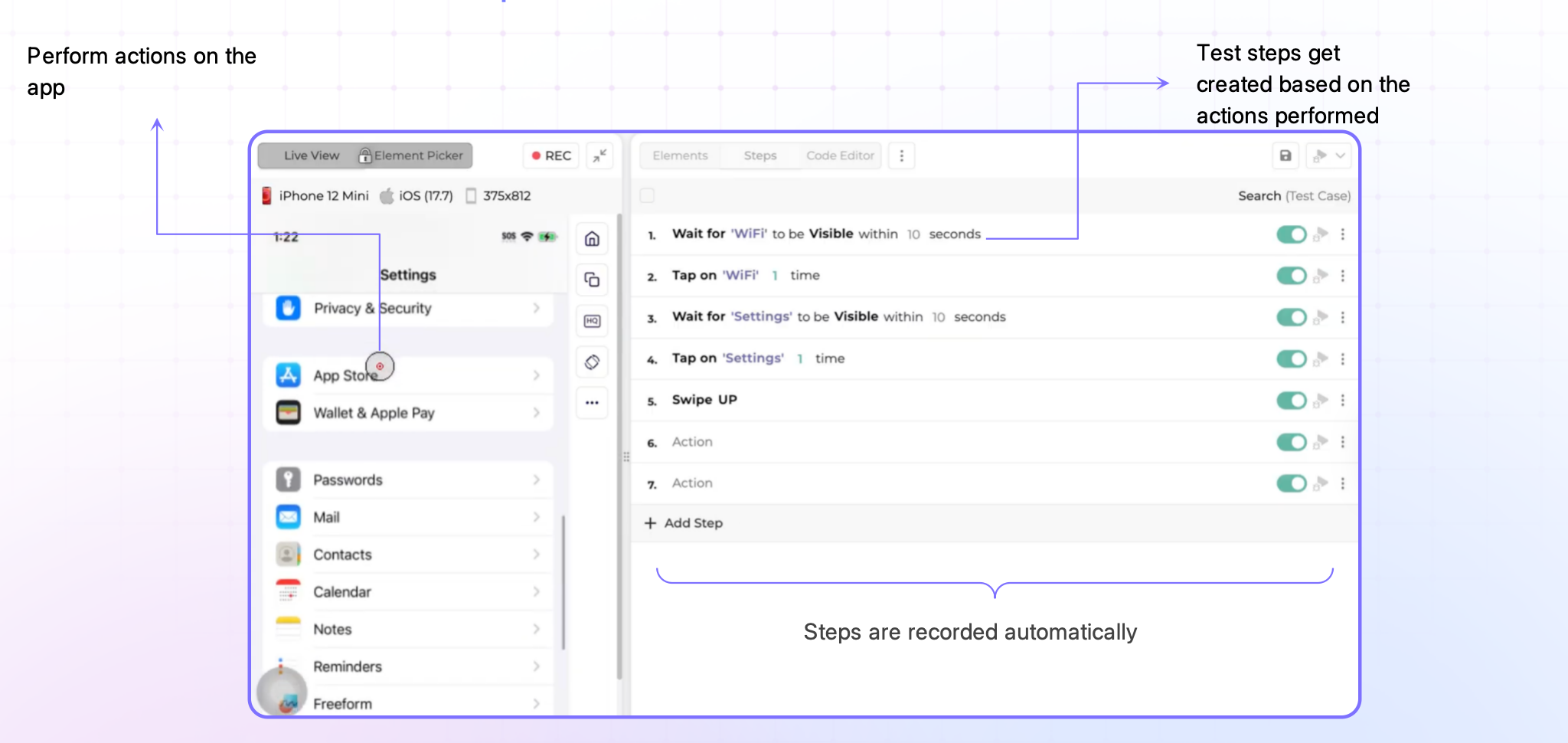
Step 6: Perform Test Actions
Interact with the application as required.
All supported actions are automatically captured and converted into test steps.
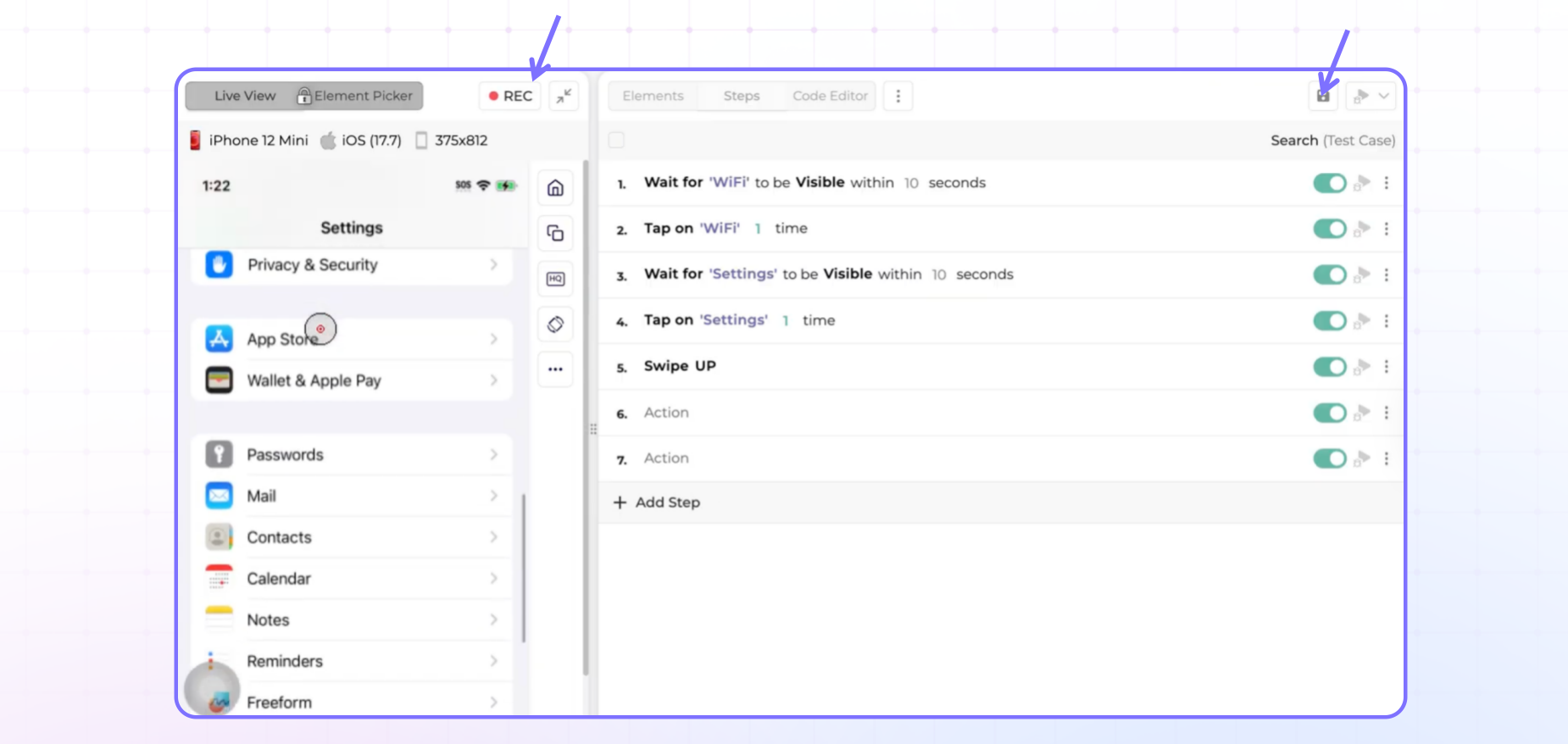
Step 7: Stop Recording
Once the desired workflow has been completed:
Click Stop Recording.
Save the recorded test steps.
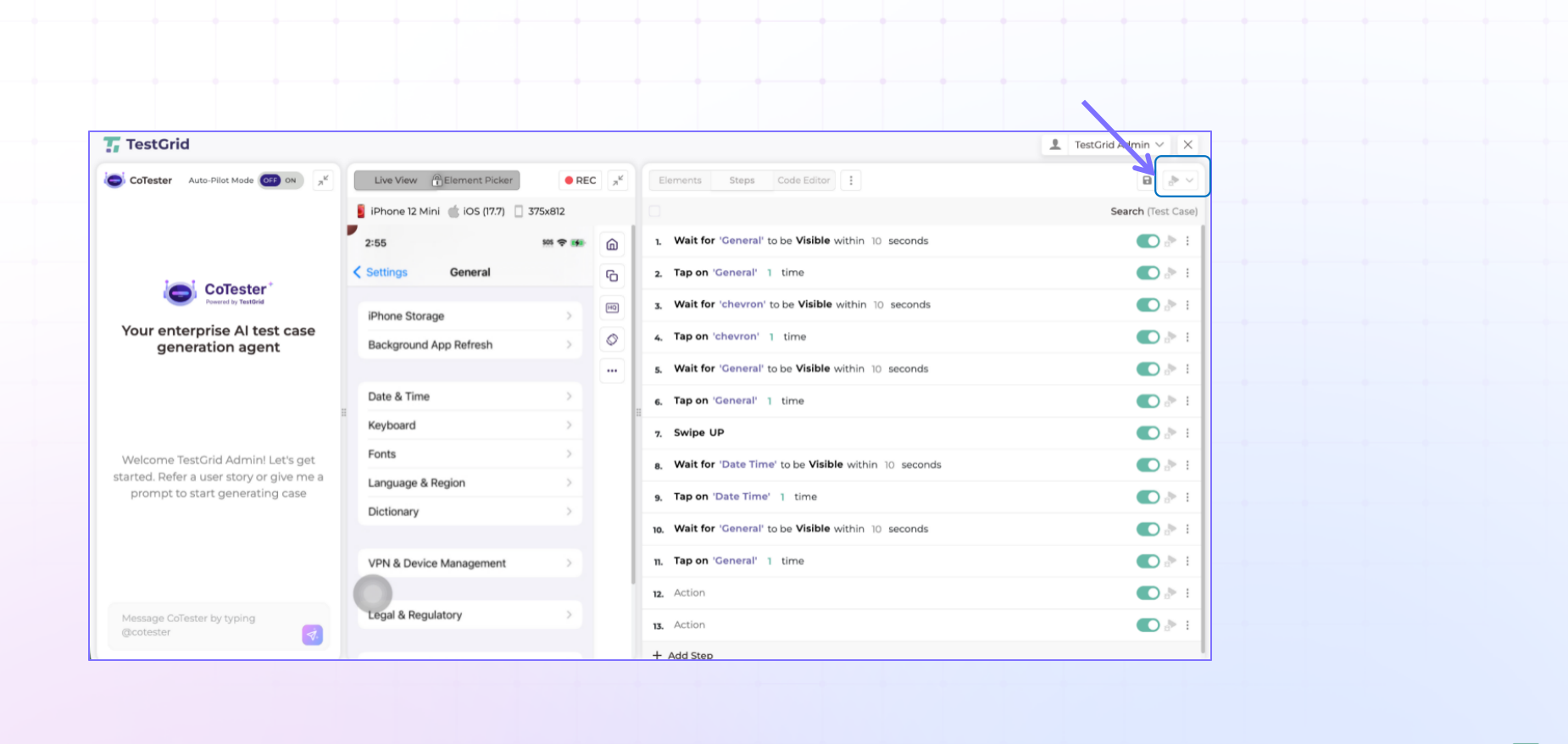
Step 8: Debug Recorded Steps
Run the debugging process to validate the recorded actions before execution.
Step 9: Add Steps Manually using element picker(Optional)
Additional test steps can be created manually.
Before selecting elements manually, ensure that the Element Picker is enabled.
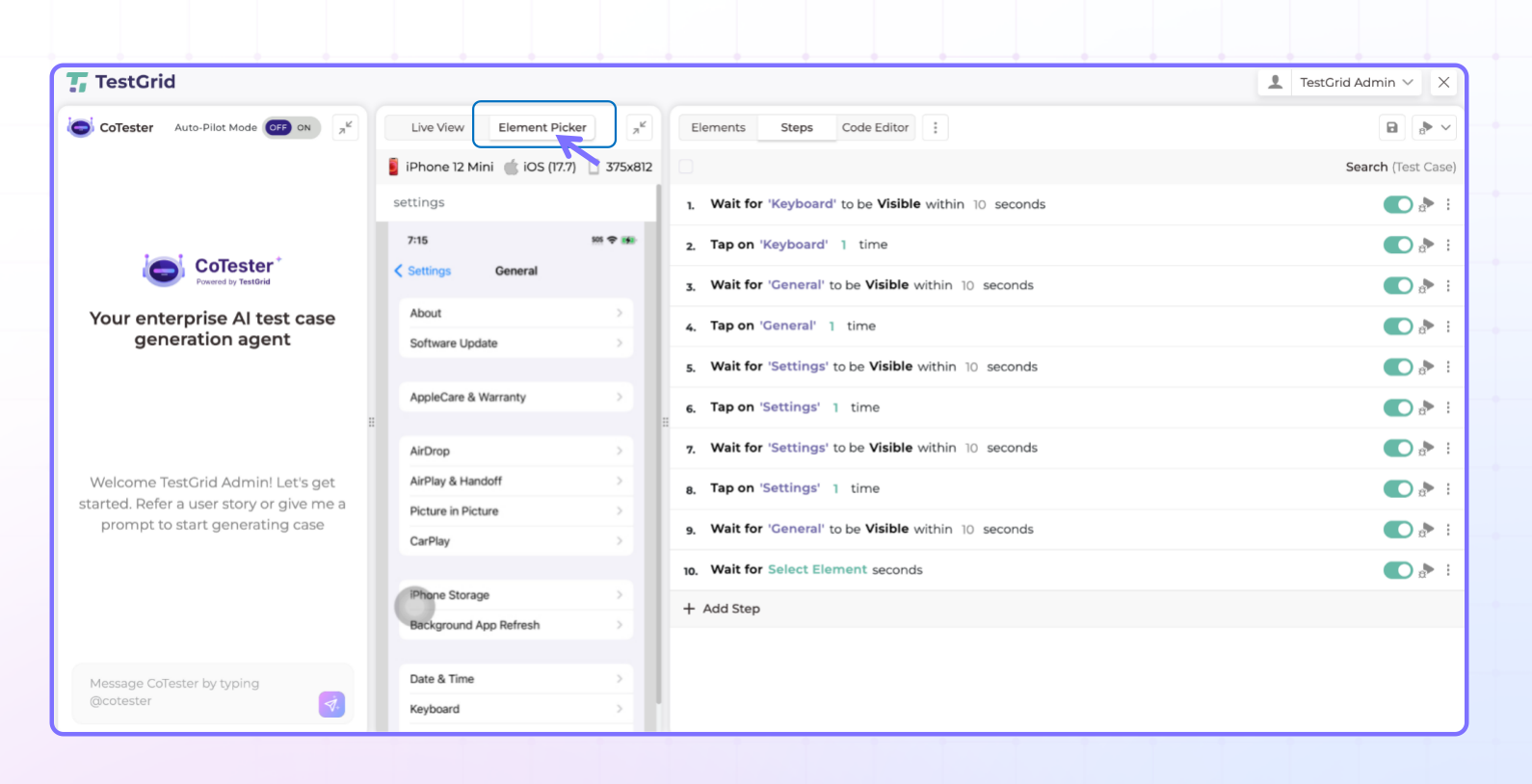
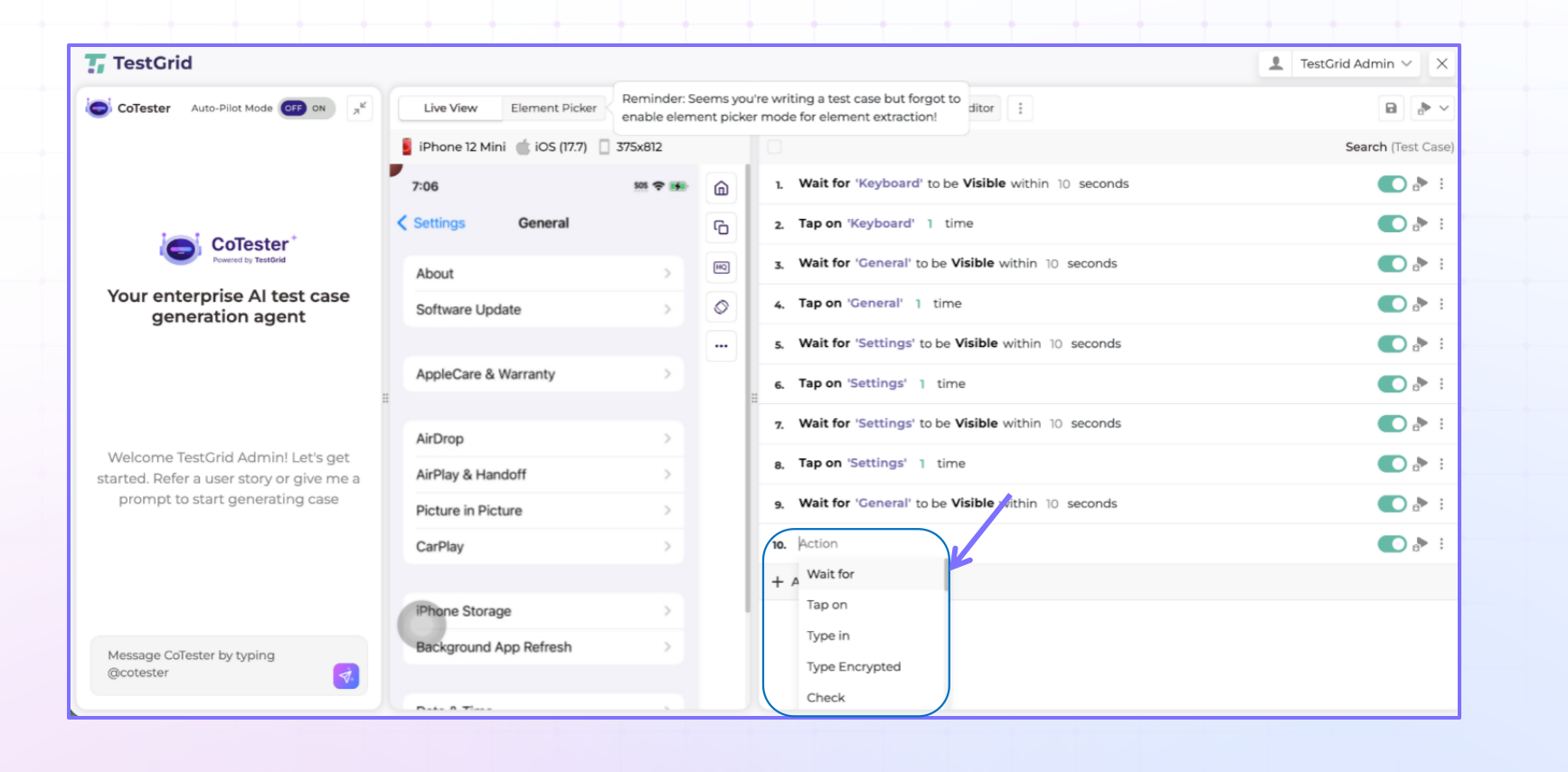
Step 10: Select the action you want to perform
Select Action.
Choose the required action type.
Configure the step details.
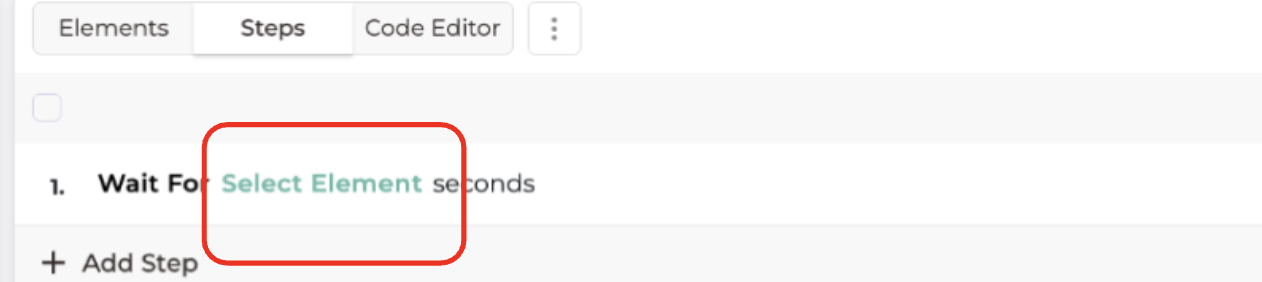
Step 11: Select Elements Manually
Click Select Element.
Choose the required element directly from the application screen.
Confirm the selection.
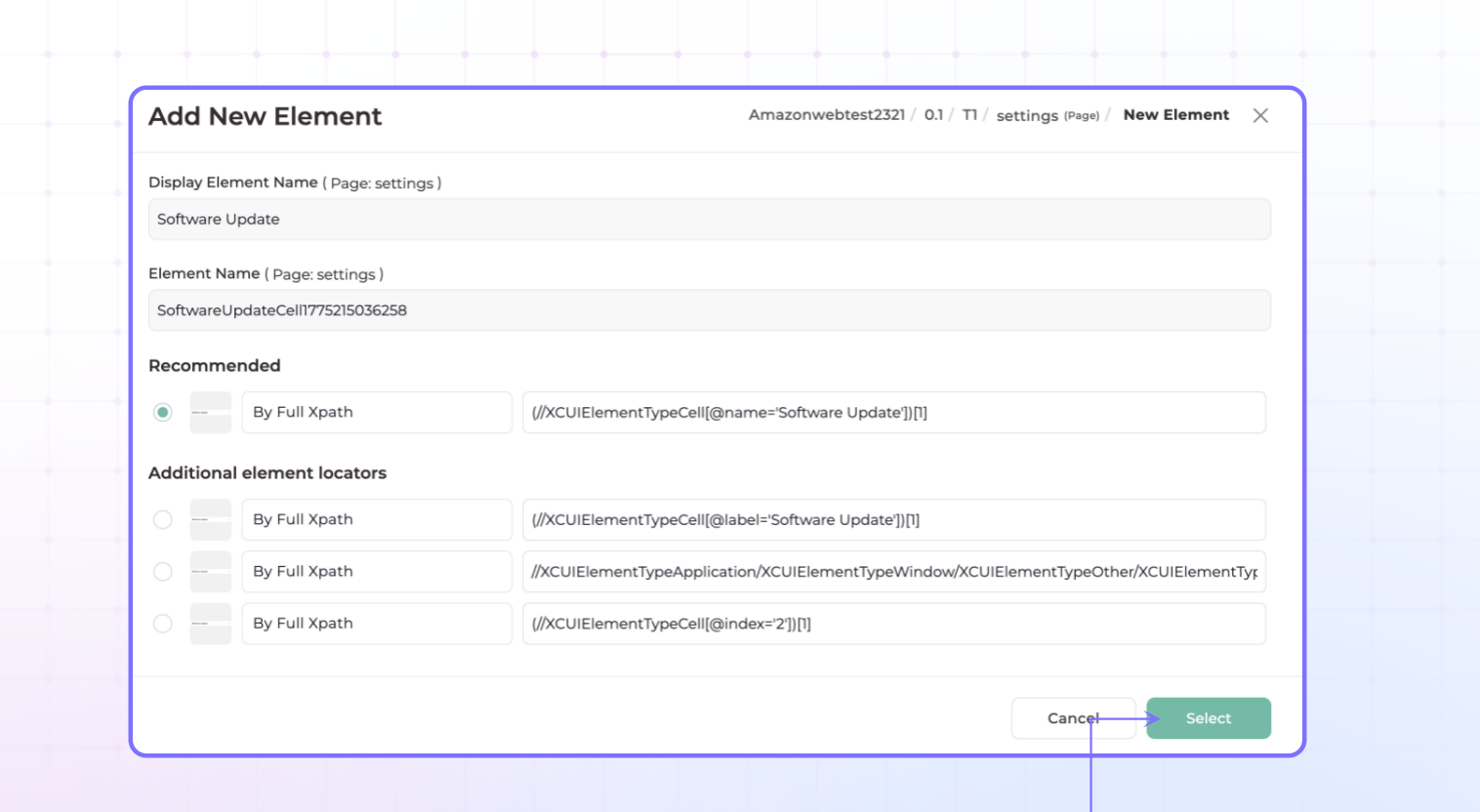
Step 12: Add Selected Elements
When an element is selected, the Add Element dialog appears.
Click Add Element to insert it into the test case.
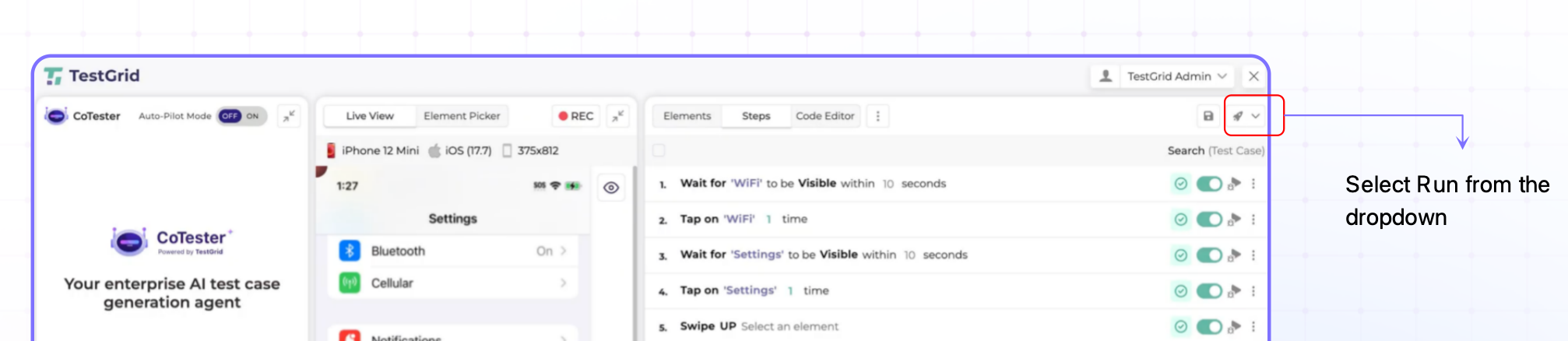
Step 13: Execute the Test Case
Open the execution options.
Select Run.
Start test execution.
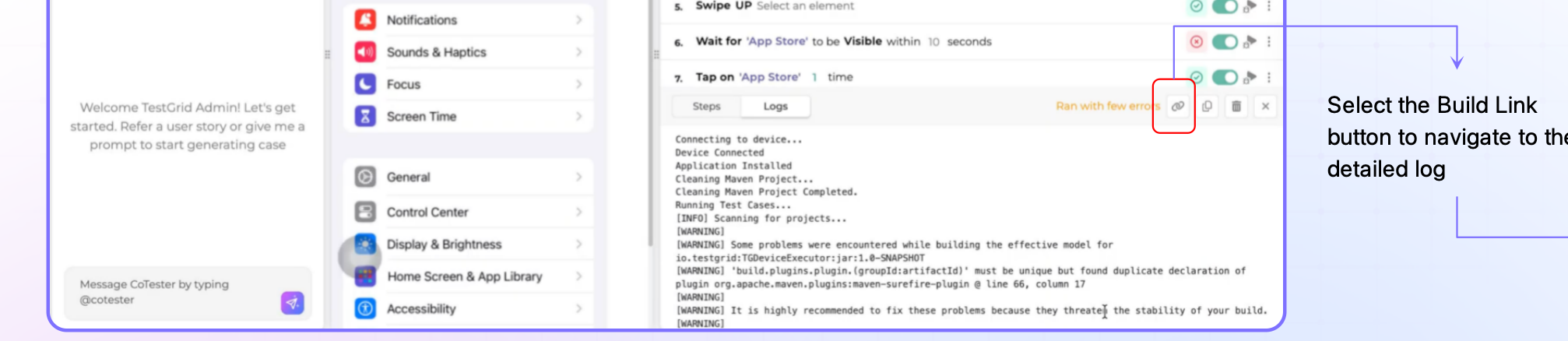
Step 14: View Detailed Logs
Select Build Link to navigate to the detailed execution log.
Execution logs include:
Test steps
Screenshots
Validation results
Error details
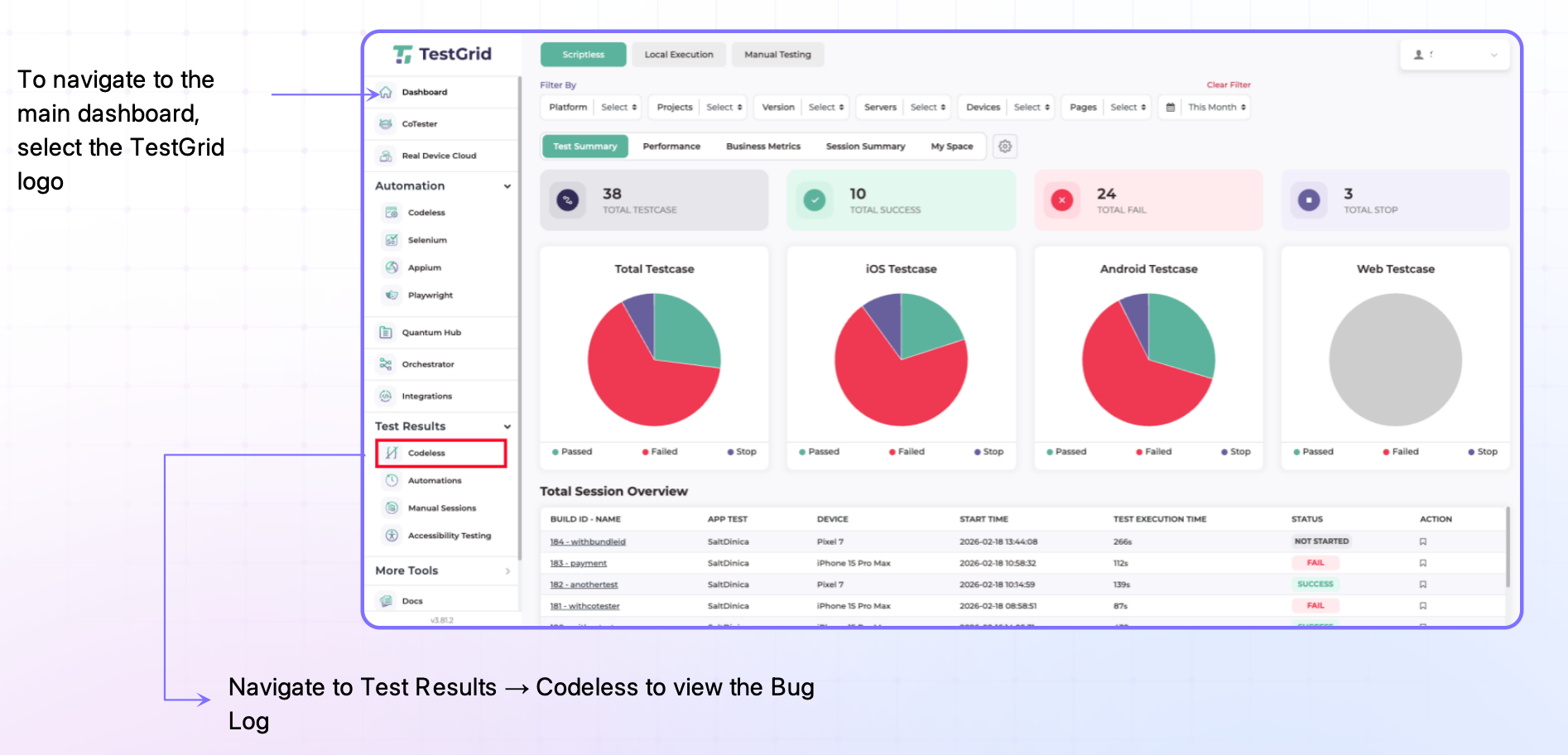
Step 18: Access Reports
Navigate to:
Test Results → Codeless
to review execution reports and logs.
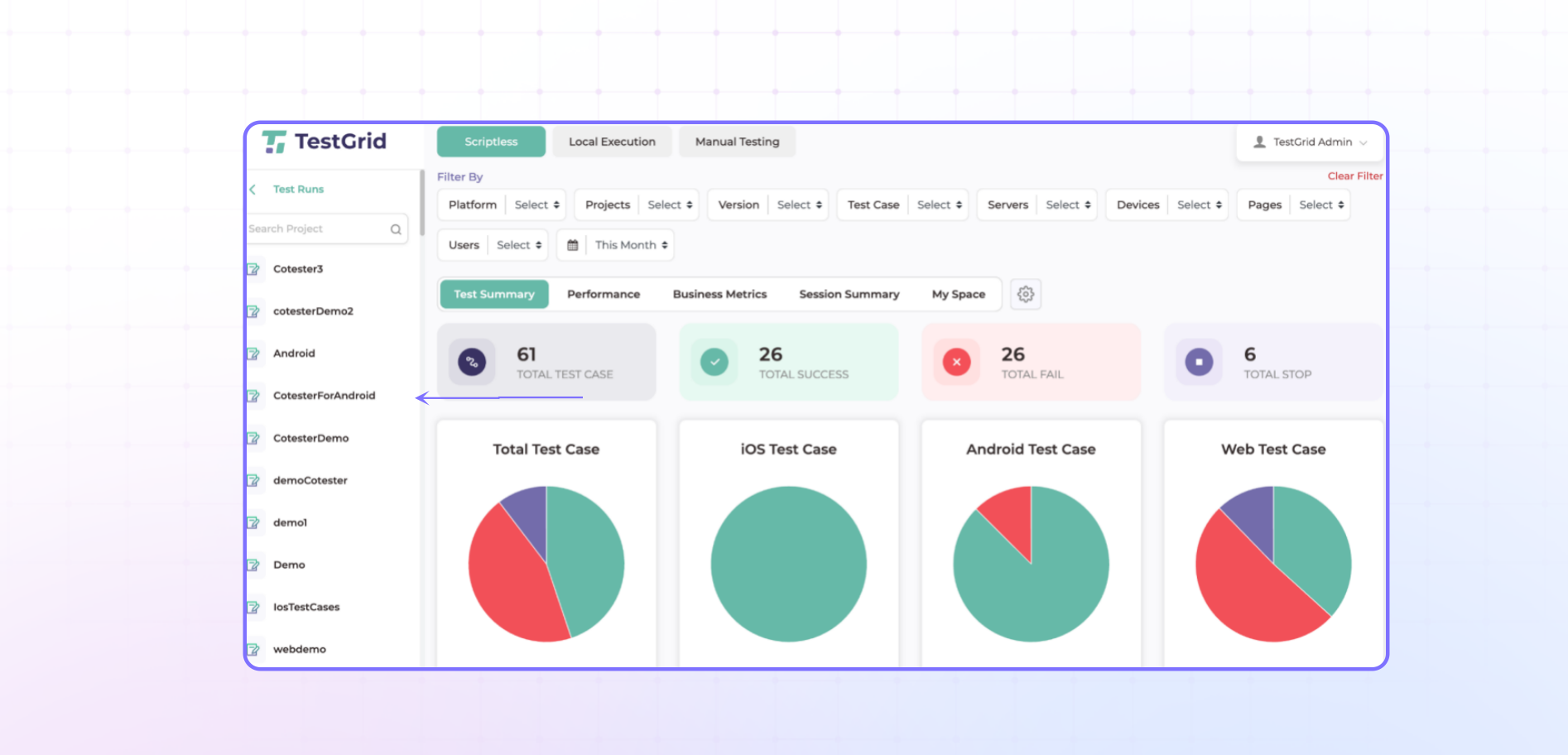
Step 19: Open Saved Projects
To access previously created projects:
Go to Dashboard.
Navigate to Test Results → Codeless → Projects.
Select the required project.
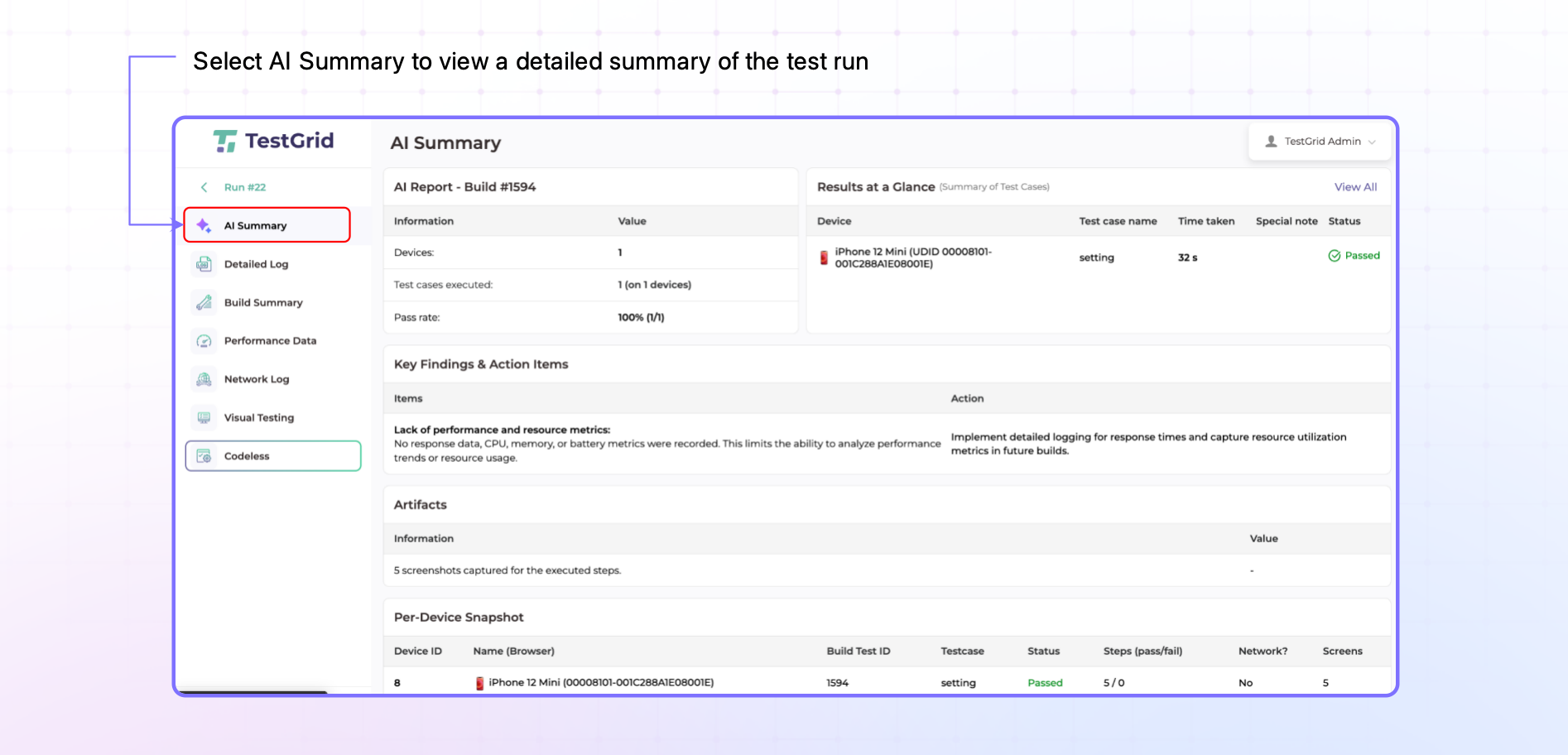
Step 20: Review AI Summary
Select AI Summary to view an AI-generated analysis of the test execution.
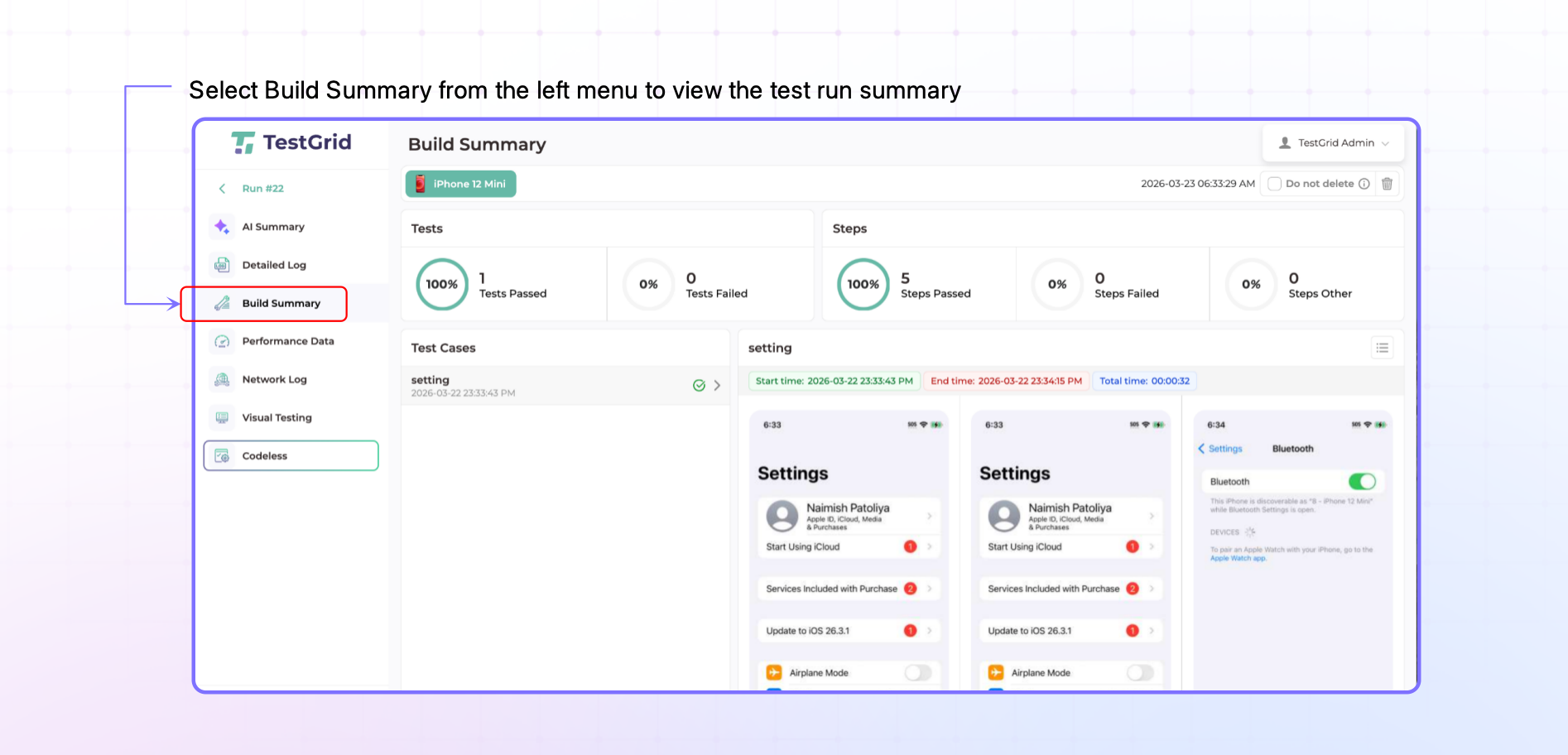
Step 21: Review Build Summary
Select Build Summary to view overall execution metrics and results.
Screenshot: Build Summary
Outcome
You have successfully created, recorded, edited, executed, and analyzed an automated test case using the Record & Play feature. Test execution results, logs, screenshots, AI insights, and build summaries are available for review and further analysis.
Was this article helpful?
That’s Great!
Thank you for your feedback
Sorry! We couldn't be helpful
Thank you for your feedback
Feedback sent
We appreciate your effort and will try to fix the article