Overview
This guide explains how Super Admin users can add new devices to the TestGrid Device Cloud and assign them to users. Following these steps ensures that newly connected devices are available for testing and can be allocated to the appropriate team members.
Prerequisites
Super Admin access to the TestGrid portal.
At least one active Process Server configured in the environment.
Devices connected and available for discovery.
Permission to manage devices and user assignments.
Steps
Step 1:
Log in to the TestGrid Portal

Step 2: Open the Admin Menu
From the top-right corner of the portal, click your username to open the account menu.
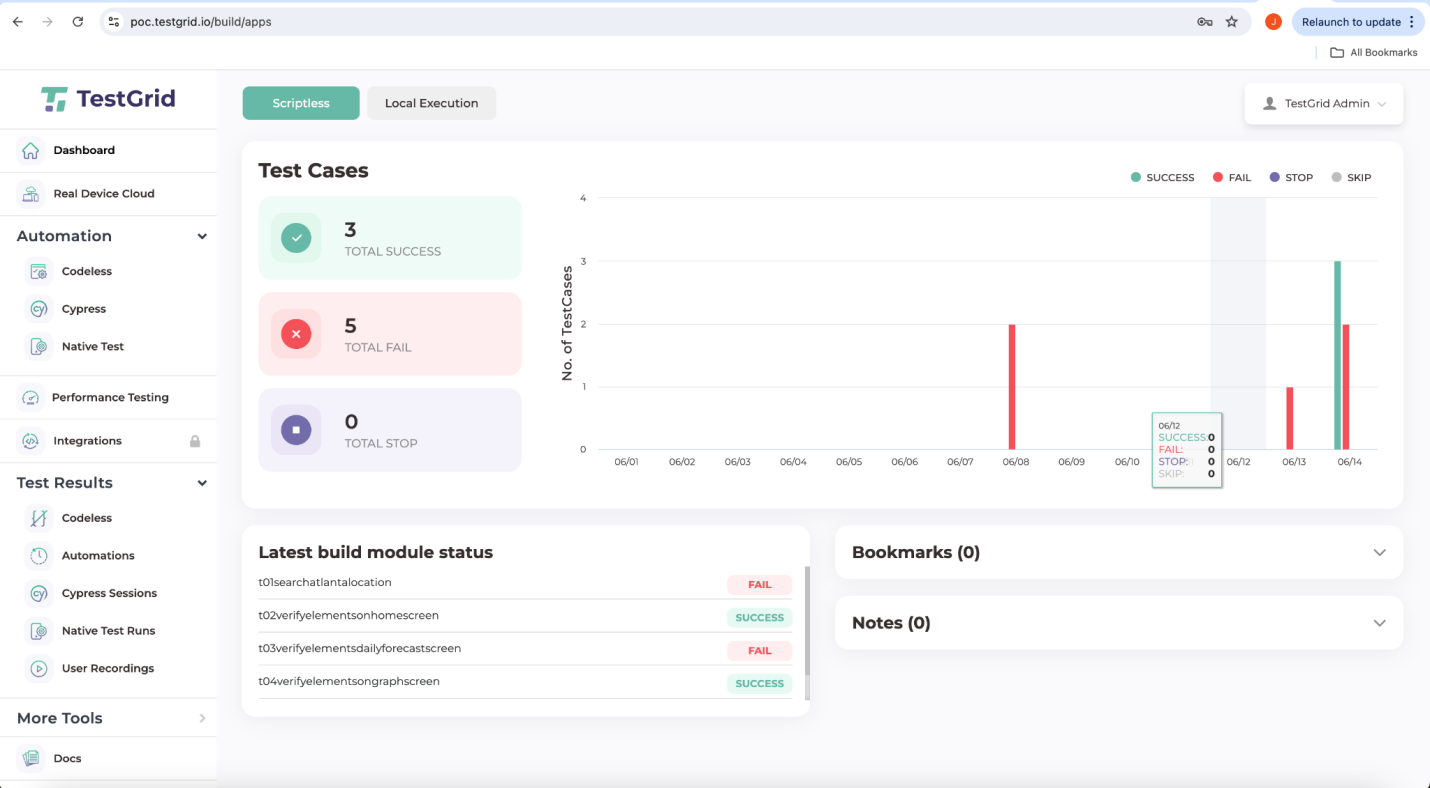
Step 3: Access the Admin Panel
From the dropdown menu, select Admin.
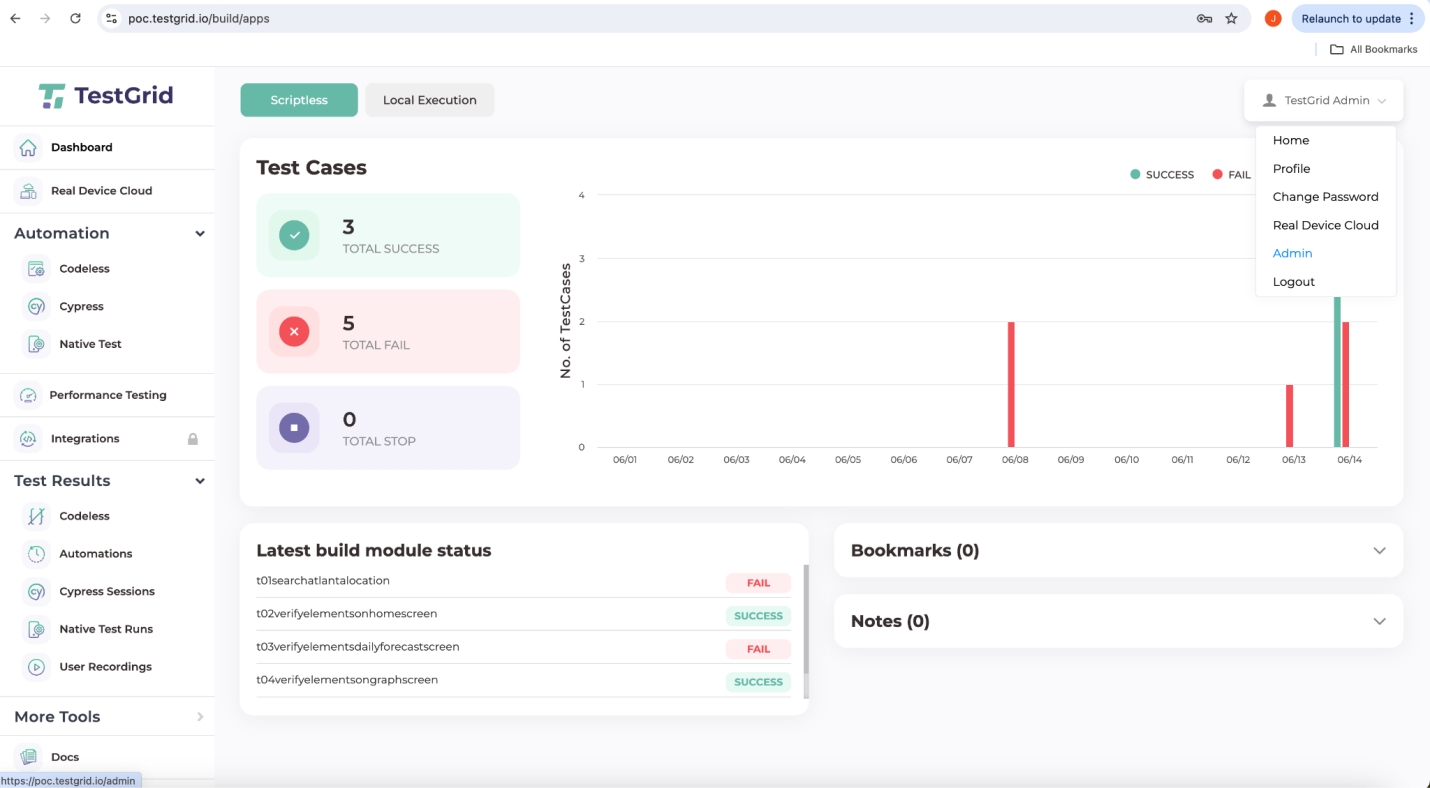
Step 4: Navigate to Devices
Within the Admin Panel, click Devices from the left navigation menu.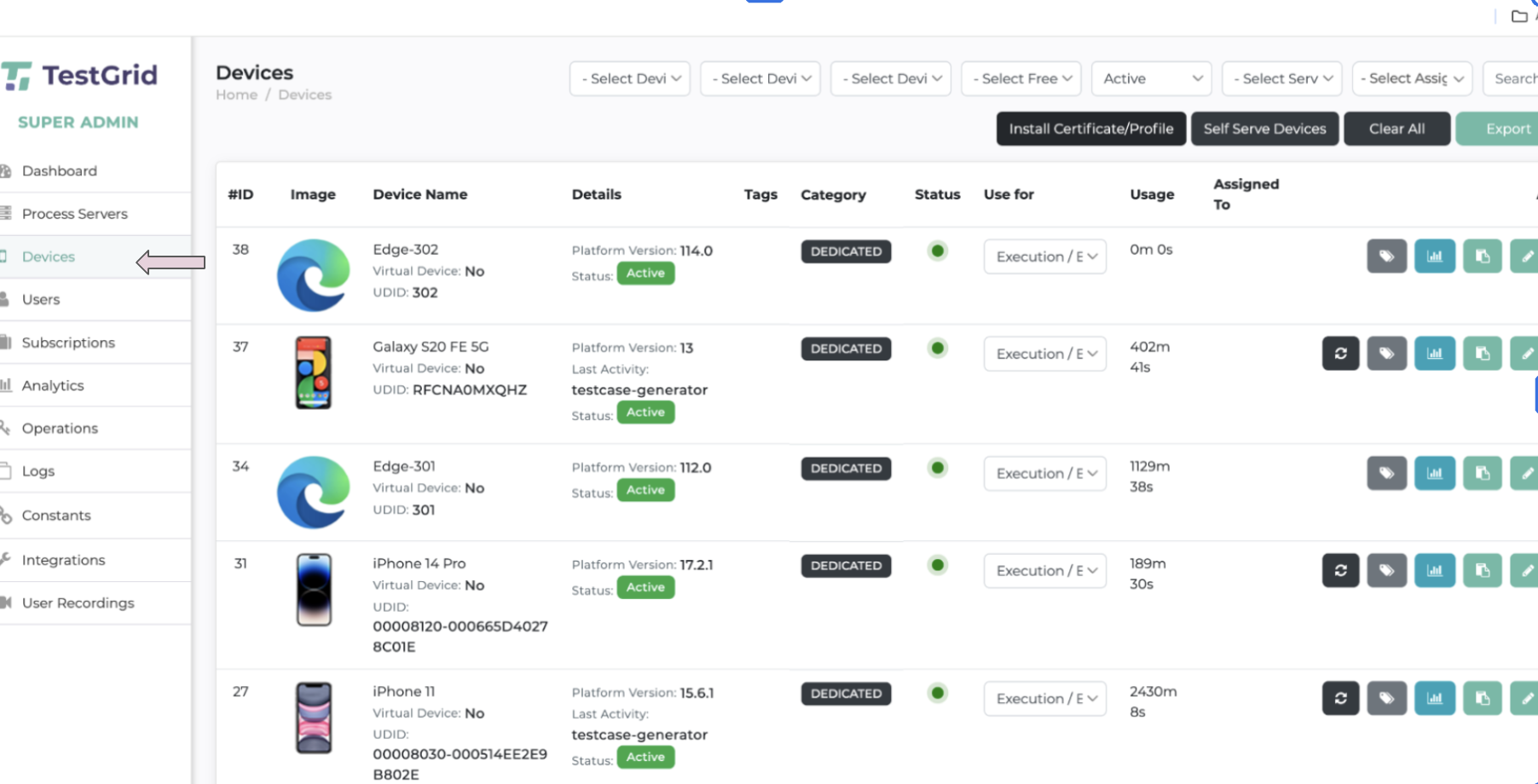
Step 5: Review Existing Devices
The Devices page displays all devices currently available in the environment.
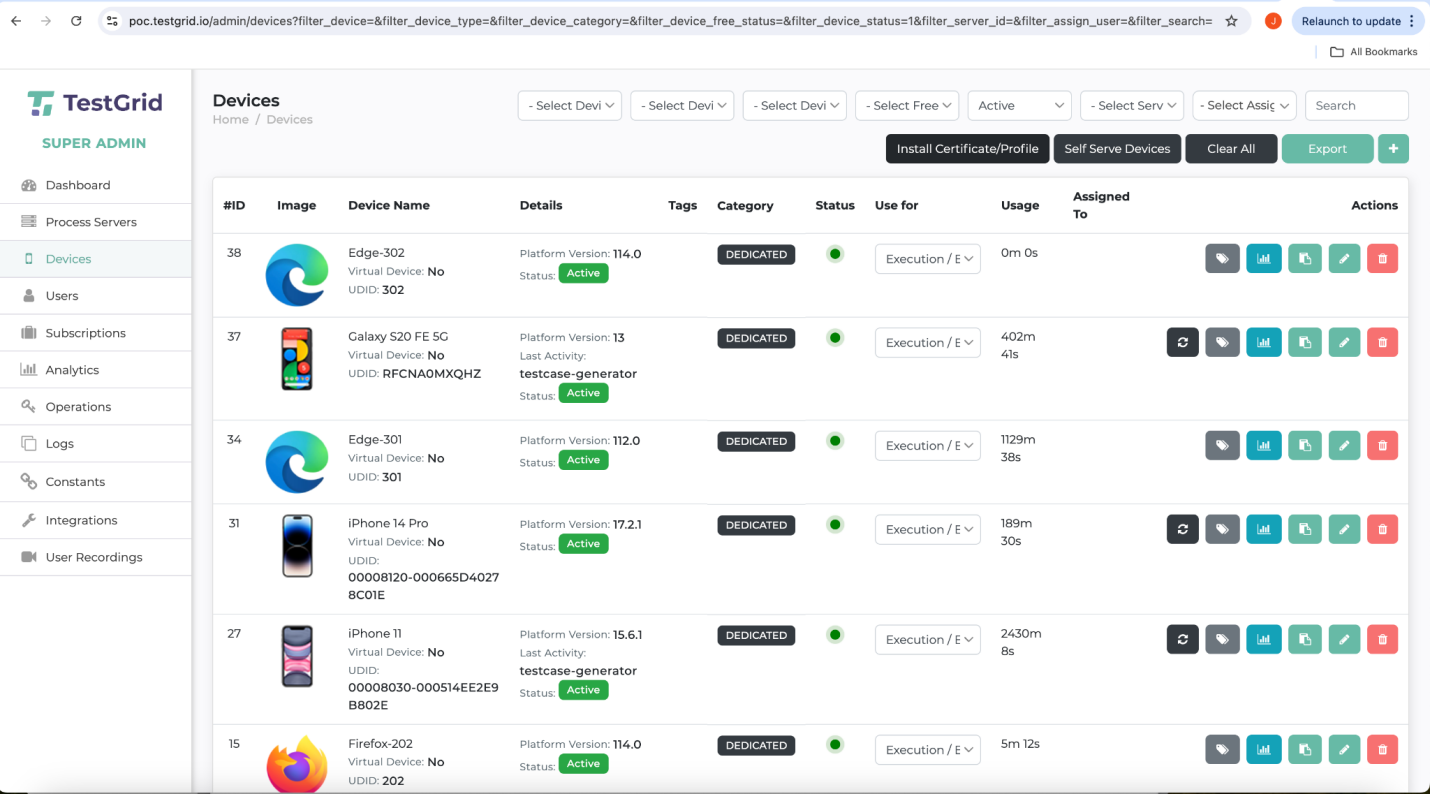
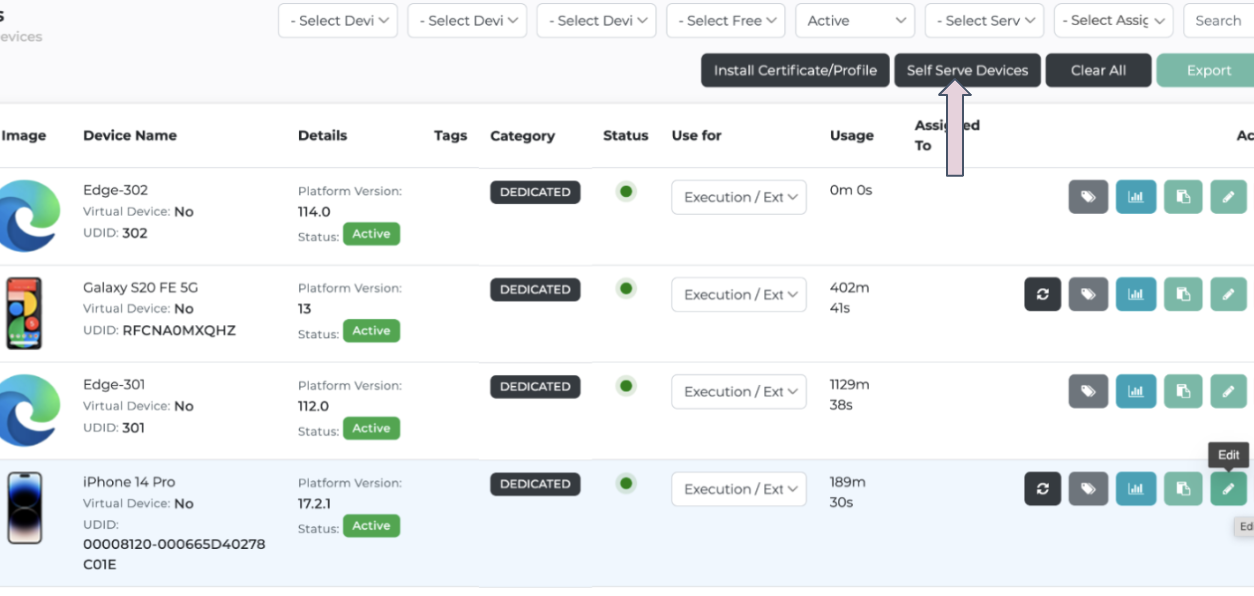
Step 6: Launch Device Discovery
Click Self Serve Devices to discover and add new devices.
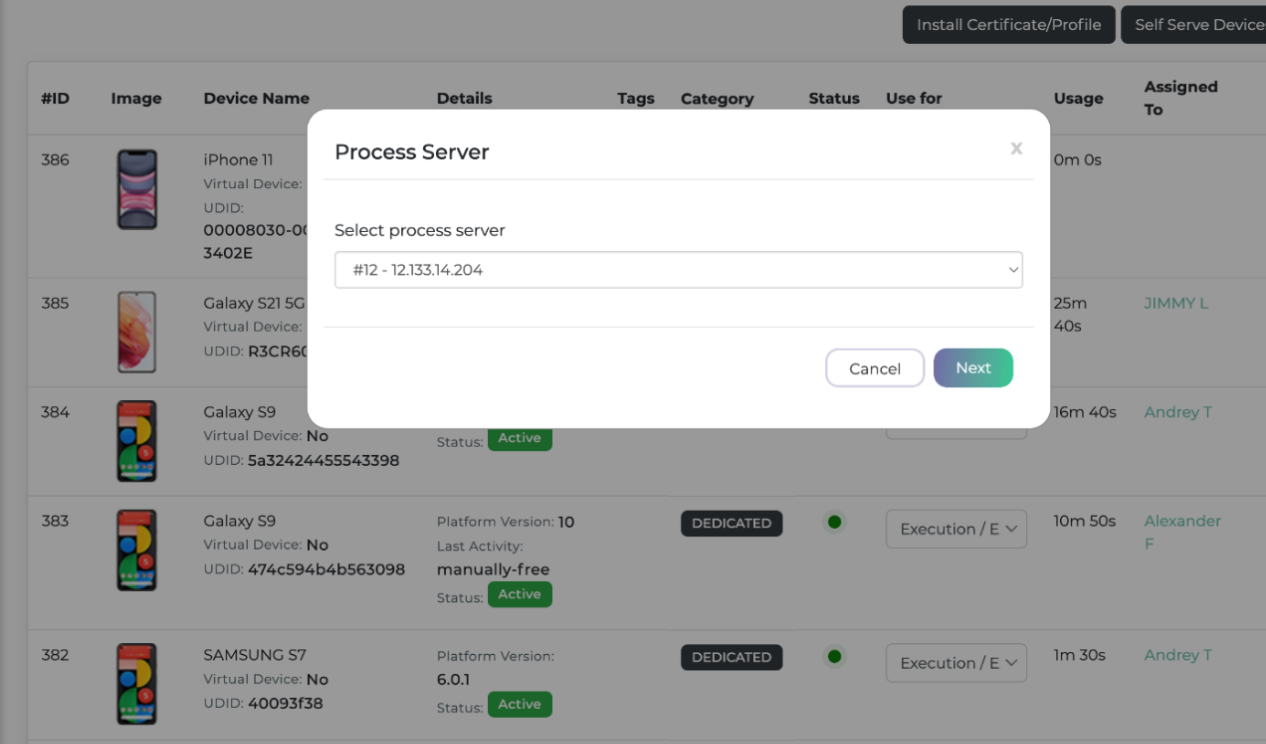
Step 7: Select a Process Server
Choose the Process Server that manages the devices you want to add and click Next.
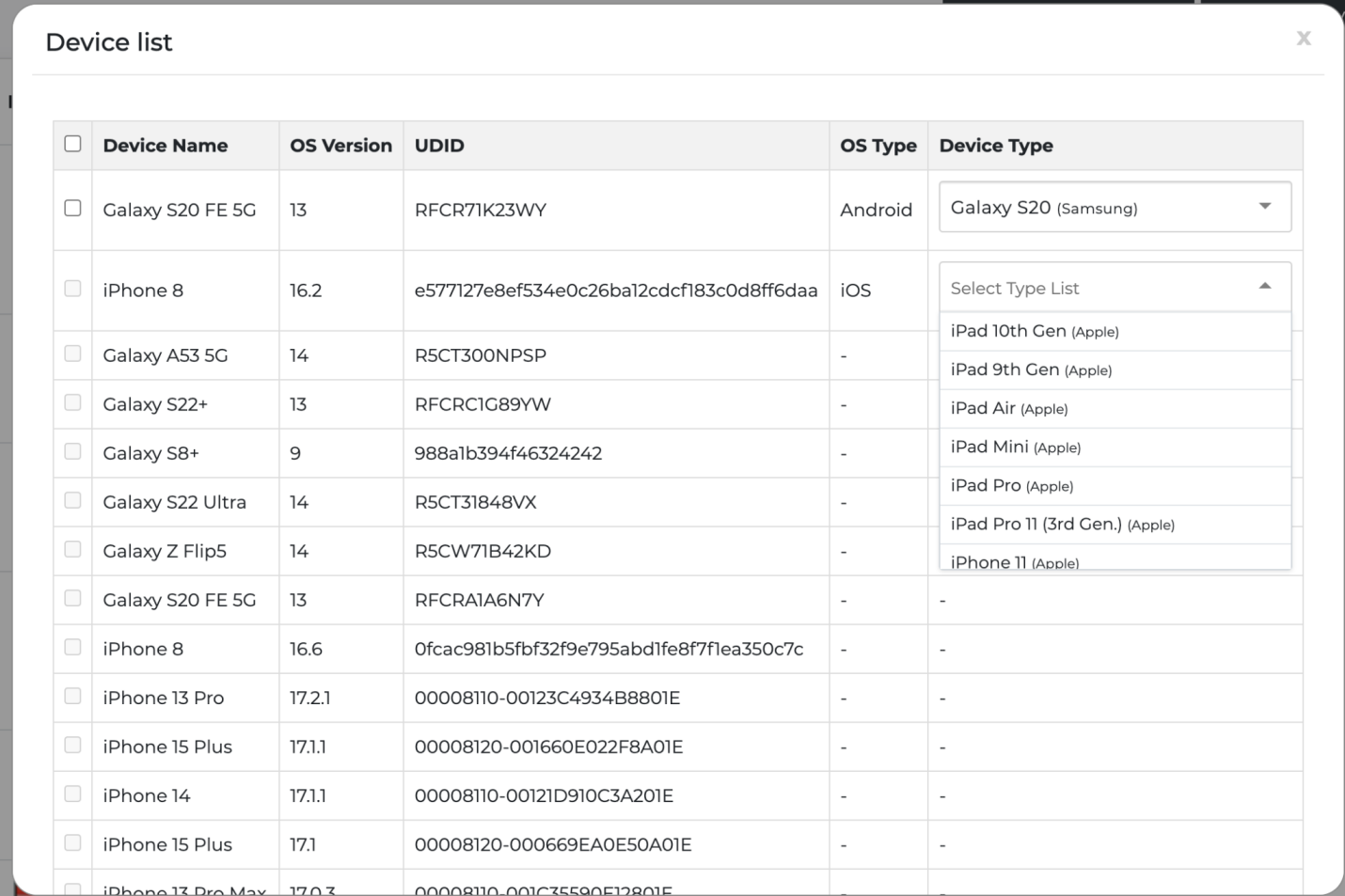
Step 8: Configure Device Types
Review the discovered devices list.
Select the appropriate Device Type for each device, if applicable.
If a device type is unavailable, you may manually select it from the dropdown
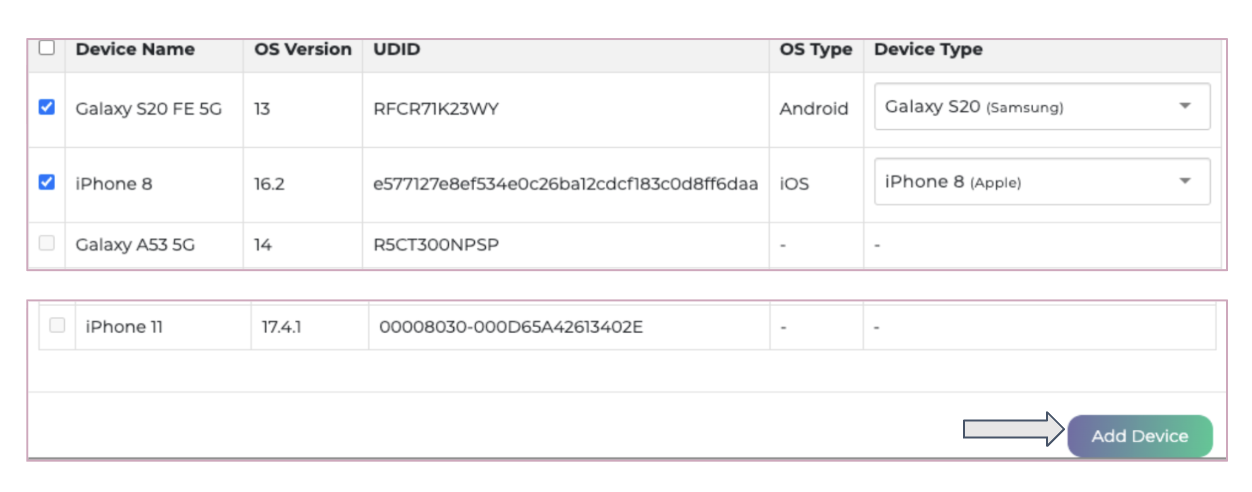
Step 9: Add Devices
Select the devices you want to onboard and click Add Device.
Step 10: Verify Device Addition
Once added, the devices will appear in the Devices list.
Restart the device agent/service (JAR) for each newly added device to ensure proper communication with the platform.
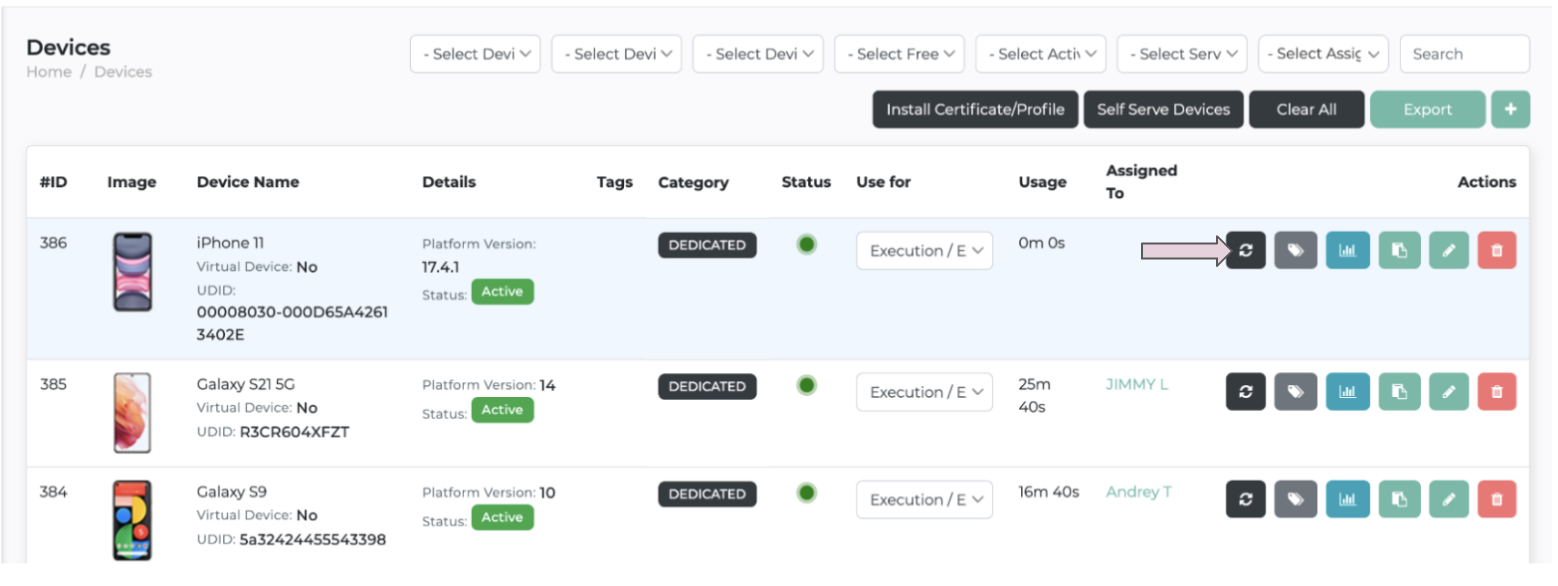
Step 11: Assign Devices to Users
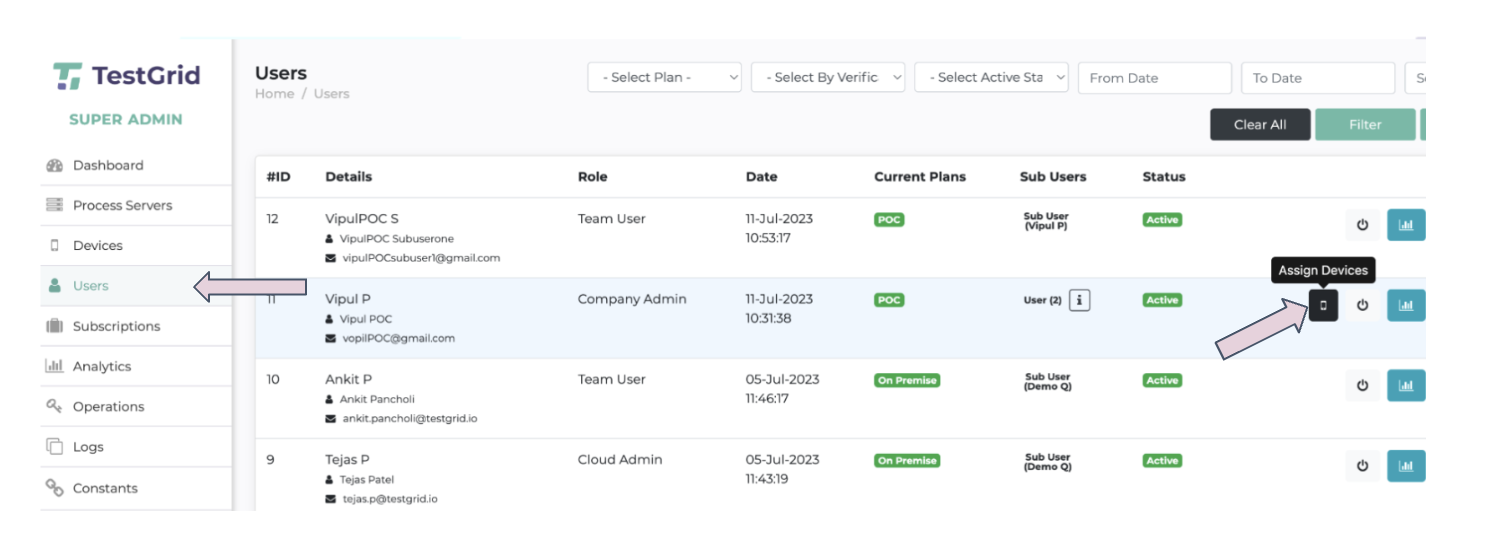
Navigate to Users from the Admin menu.
Locate the required user and click the Assign Devices icon. Assign the newly added devices to the appropriate user.
Outcome
The selected devices are successfully added to the TestGrid Device Cloud and assigned to the required users. These devices are now available for execution and testing activities.
Was this article helpful?
That’s Great!
Thank you for your feedback
Sorry! We couldn't be helpful
Thank you for your feedback
Feedback sent
We appreciate your effort and will try to fix the article